

Most teams don’t have a Jira problem. They have a habit problem. Jira is one of the most powerful project management platforms available. But power without structure creates noise. And noise kills productivity faster than any bottleneck or missed deadline. The good news? You don’t need a full system overhaul to work better in Jira. You need a handful of smart, repeatable habits, small changes that compound over time into significantly less friction.
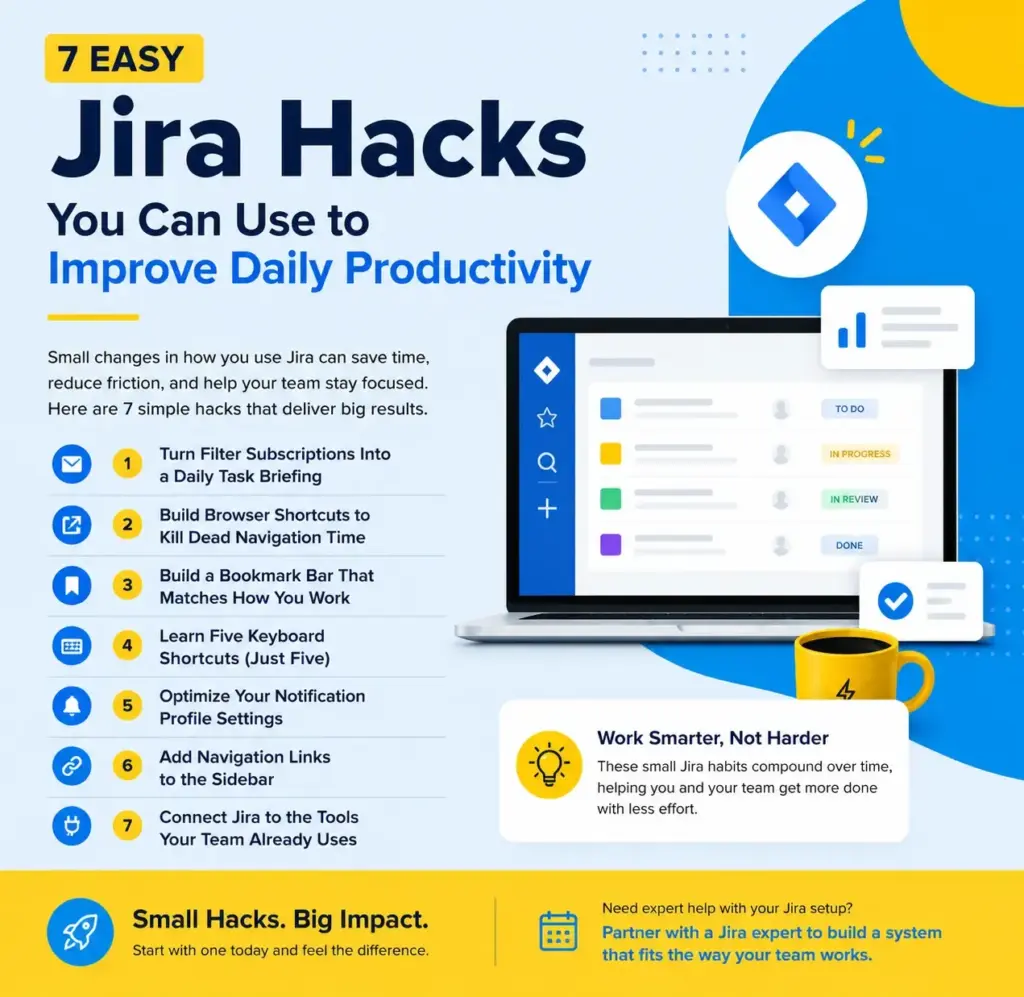
These seven hacks are practical, low-effort, and immediately useful. Some take two minutes to set up. Others require a bit of admin access. All of them are worth your time.
Why Small Jira Habits Matter More Than You Think
Every extra click, every unnecessary search, every notification you ignore — these are not isolated annoyances. They are patterns. And patterns, repeated across a team of ten or twenty or a hundred people, add up to thousands of lost hours per year.
This is why Jira configuration matters so much. A well-configured instance removes friction at the source. A poorly configured one forces users to work around the system instead of with it. The hacks below work on both levels. Some are personal habits that any user can adopt today. Others are system-level improvements that, ideally, get handled by your admin or by a Jira consultancy that knows where to look.
Let’s get into it.
Hack 1: Turn Filter Subscriptions Into a Daily Task Briefing
Here is a simple question: How do you start your workday in Jira? If the answer is “I open Jira and figure out what needs attention,” you’re losing time before you’ve done anything. A better approach is to have Jira tell you what matters before you even open the app.
How it works: Create a saved filter using JQL that pulls all issues assigned to you with due dates in the next 48 hours. Then subscribe to that filter and set it to deliver an email summary every weekday morning.
A basic JQL query looks like this:
assignee = currentUser() AND due <= 2d AND status != Done
Save the filter, go to the subscription settings, choose your schedule, and you’re done. Every morning, you get a curated list of what actually needs your attention that day. This works especially well for recurring tasks, support tickets in Jira Service Management configuration environments, and sprint wrap-up work that tends to get buried.
The habit: Let Jira brief you. Don’t brief yourself by scrolling through boards.
Hack 2: Build Browser Shortcuts to Kill Dead Navigation Time
Navigation is the hidden tax of digital work. Every time you type a URL from scratch or click through four menus to reach a page you visit daily, you’re paying that tax.
Browsers let you create custom search engines — keyword shortcuts that jump you directly to specific Jira URLs. Most people don’t know this exists. The ones who do save themselves hundreds of clicks per week.
How to set it up in Chrome:
- Go to Settings → Search Engines → Manage Search Engines
- Add a new entry with a short keyword (like “ji”), and set the URL pattern to your Jira project or issue search URL
- Now you can type “ji” in your address bar, hit Tab, and jump straight where you need to go
Set up one shortcut for your main board, one for issue search, and one for your most-used project. That’s it.
This is one of those jira configuration best practices that applies at the user level, no admin access required.
Hack 3: Build a Bookmark Bar That Matches How You Actually Work
Your bookmark bar is valuable real estate. Most people use it for random things they bookmarked once and never revisited.
Use it intentionally for Jira instead.
Think about the three or four places you go in Jira every single day. Your dashboard. Your active sprint board. Your team’s filter view. The admin page you always have to navigate to manually. Bookmark all of them. Name them short — “Board,” “Sprint,” “Filters,” “Admin.” Put them in a Jira bookmark folder that lives permanently in your bar.
A useful starting set of bookmarks:
- • Your personal to-do dashboard (the URL includes the dashboard ID)
- • Your JQL issue search page (save a query you run every day)
- • Your team’s project board
- • The Jira admin issues page (for admins)
This sounds trivially simple. It is. And yet most Jira users still navigate manually every day because they never took ten minutes to set this up.
Reduce your clicks. Protect your focus.
Hack 4: Learn Five Keyboard Shortcuts (Just Five)
You don’t need to memorise every Jira shortcut. You need five. Jira has global shortcuts, navigation shortcuts, issue shortcuts, and board shortcuts. The full list is accessible by pressing “?” on any Jira page. Most of it is useful. Very little of it is essential.
Here are the five worth learning first:
| Shortcut | Action |
|---|---|
| c | Create a new issue |
| / | Jump to quick search |
| g then d | Go to your dashboard |
| e | Edit an issue (when viewing one) |
| gg | Open the admin quick search (admins only) |
The gg shortcut is particularly powerful for anyone handling Jira project configurator tasks or admin-level work. Type “gg,” then start typing any admin page name, it jumps you there instantly. Keyboard shortcuts are one of those investments where the payoff is invisible. You won’t notice the seconds you save. You’ll notice the weeks later when your workflow feels unexpectedly smooth.
Hack 5: Optimise Your Notification Profile Settings
Most Jira users receive too many notifications. A smaller group receives too few. Almost nobody has their settings dialled in correctly.
Jira’s profile preferences let you control this precisely. Access them by clicking your avatar → Profile → Preferences.
Three changes worth making immediately:
- • Switch email format from Text to HTML. Text emails tell you something has changed. HTML emails show you what changed and how. That distinction matters when you’re triaging a busy inbox.
- • Turn off “notify me about my own changes.” You don’t need an email confirming what you just did. Disabling this removes a surprising amount of noise.
- • Enable Autowatch on issues you create or comment on. This keeps you in the loop on issues you’re already engaged with, without manually watching each one.
These three settings take about ninety seconds to change and immediately reduce inbox clutter. For teams working in Jira Service Management configuration environments, getting notifications right is even more critical. Too many alerts and agents start ignoring everything. The goal is signal, not volume.
Hack 6: Add Navigation Links to the Sidebar
Jira doesn’t exist in isolation. Your team probably uses Confluence for documentation, Slack or Teams for communication, and maybe a shared drive for files. Every time someone leaves Jira to find a related resource, and then has to navigate back, you lose momentum.
Jira lets you add custom links to the project sidebar. These can point to Confluence spaces, shared documents, internal wikis, team dashboards, or even a group email address. It’s a small thing that eliminates the “where was that link again?” moment that happens more often than it should.
To add sidebar links: In your project, look for “Add link” (Server) or “Add item” (Cloud) in the left sidebar. Project admins can manage these, so if you’re a user, ask your project lead to set it up.
This connects directly to one of the most overlooked jira configuration best practices: treat your project sidebar as a navigation hub, not just a menu. The teams that use it well spend less time searching and more time working.
Hack 7: Connect Jira to the Tools Your Team Already Uses
The highest-leverage Jira habit is also the most underutilized: integration.
When Jira is an island, people avoid it. They create parallel tracking systems, duplicate notes in other apps, or simply forget to update tickets. When Jira connects to the tools your team lives in, it becomes the natural place to track everything.
Common integrations worth setting up:
- • Slack or Microsoft Teams: Post automatic messages when issues are created, updated, or moved to specific statuses. Keeps the team informed without requiring anyone to check Jira manually.
- • Confluence: Link issues directly to related documentation pages, meeting notes, or spec documents. The connection is bidirectional — you can see linked issues from Confluence and linked pages from Jira.
- • GitHub or Bitbucket: Connect commits and pull requests to Jira tickets. Developers see their code history alongside issue context.
These integrations live at the application level, configured under Admin → Application Links. They’re among the best configuration management tools for Jira available natively, and they work especially well when set up with a clear plan.
If your team is using Jira Service Management, proper integration with communication channels is also a core element of Jira Service Management configuration, customers get faster responses, and agents spend less time switching tabs.
The Underlying Principle Behind All Seven Hacks
Look at these seven hacks as a group, and a pattern emerges. None of them requires you to work harder. All of them reduce the friction between you and the work you’re already trying to do. That’s the point.
James Clear wrote that every system is perfectly designed to get the results it gets. If your Jira setup is producing confusion, missed deadlines, and low adoption, it’s not because your team lacks discipline. It’s because the system is making good habits difficult.
Remove the friction. Build the shortcuts. Connect the tools. Let Jira work for your team instead of against it.
When DIY Configuration Isn’t Enough
These seven hacks are a strong starting point. But they are the surface layer.
Underneath them is a deeper set of decisions: how your workflows are structured, how your schemes are organised, how your fields, screens, and permissions fit together across projects. That’s where Jira configuration best practices go from helpful to essential, and where most teams quietly accumulate technical debt they don’t know is there.
If your team is scaling, migrating, or just starting to feel like Jira is more complicated than it should be, that’s usually a sign that the underlying configuration needs professional attention.
A good Jira consultancy doesn’t just fix what’s broken. They look at how your whole instance is structured and rebuild it around how your team actually works. They bring experience with Jira project configurator setups, advanced workflow design, permission schemes, and the best configuration management tools for Jira that most in-house admins haven’t had time to explore.
Whether you’re managing a large enterprise rollout or a growing startup that’s outgrown its original setup, there’s a real case for bringing in someone who does this full-time. When you hire a Jira expert or hire a Jira specialist, you’re not just paying for technical knowledge — you’re paying for the pattern recognition that comes from having seen dozens of configurations across different industries and team types.
A skilled jira consultancy partner can typically audit your instance, identify the friction points, and implement improvements in a fraction of the time it would take an in-house team to reverse-engineer the same problems.
Where to Start
If you’re ready to act on this today, pick one hack from this list and implement it before the end of the workday.
- • Set up a filter subscription for tomorrow morning’s task briefing
- • Build three browser shortcuts to your most-visited Jira pages
- • Change your notification preferences so your inbox reflects what actually matters
• Small improvements, done consistently, produce big results over time.
And if you’re at a point where the small improvements aren’t enough — where your team needs a cleaner configuration, better workflows, or a fresh approach — consider reaching out to a Jira consultancy that can help you build a system your team will actually use.
The best version of Jira isn’t the most feature-rich. It’s the one that fits the way your team works.
